Start from the beginning.
Choose Watch from Start in the player to restart the current programme, when your provider supports it.


Use your IPTV playlist on Mac or Apple TV. Browse channels, check the Guide, and change channels while watching.
No public EPTV release is available yet.
Browse channels by group or open Favorites. See what is playing before you choose. If a channel has several stream qualities, EPTV keeps them together in one entry.
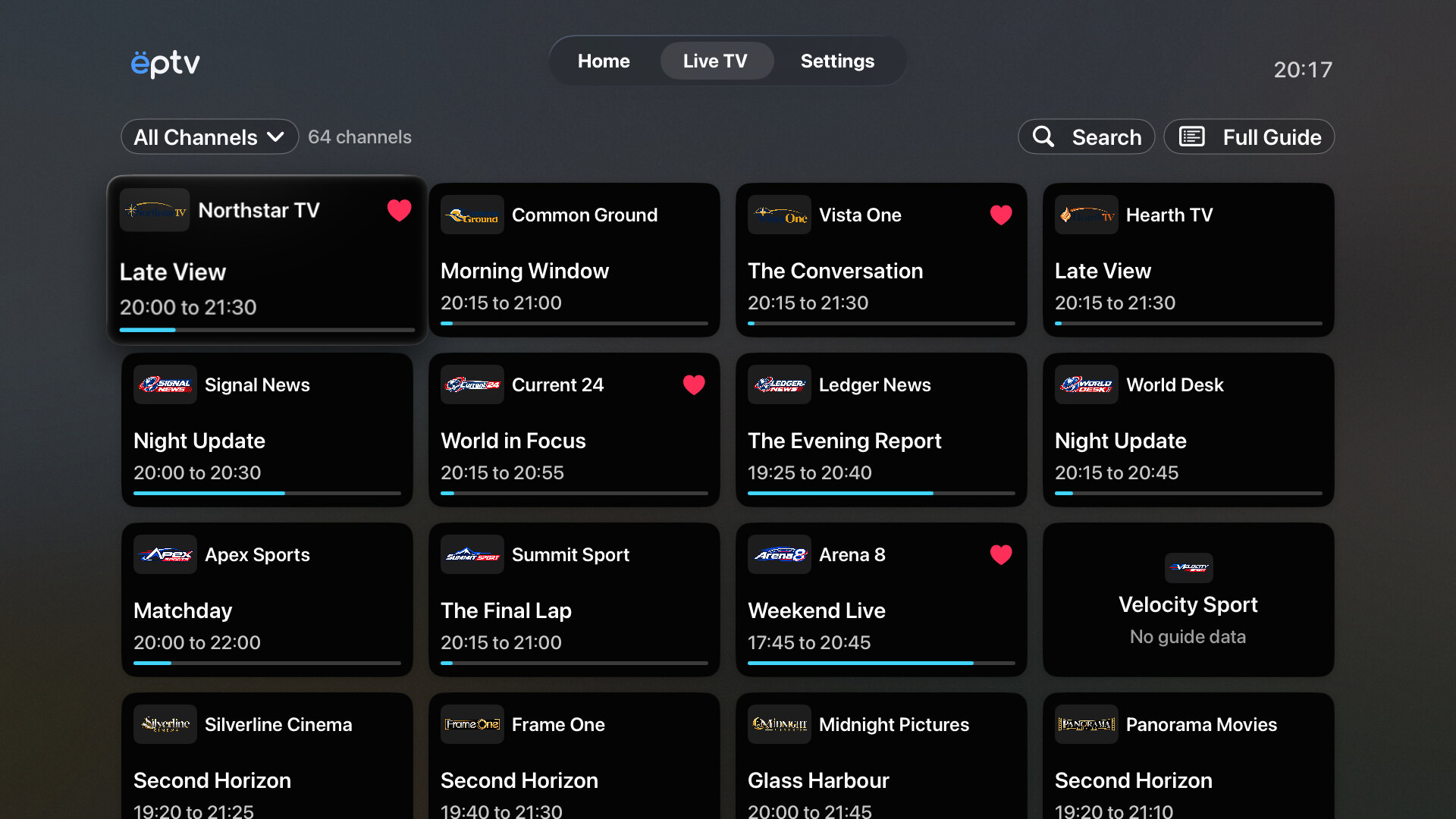
See the current programme and the one coming next. You can decide what to watch without opening every channel.
It shows how far the programme has gone. You can only rewind when the stream supports it.
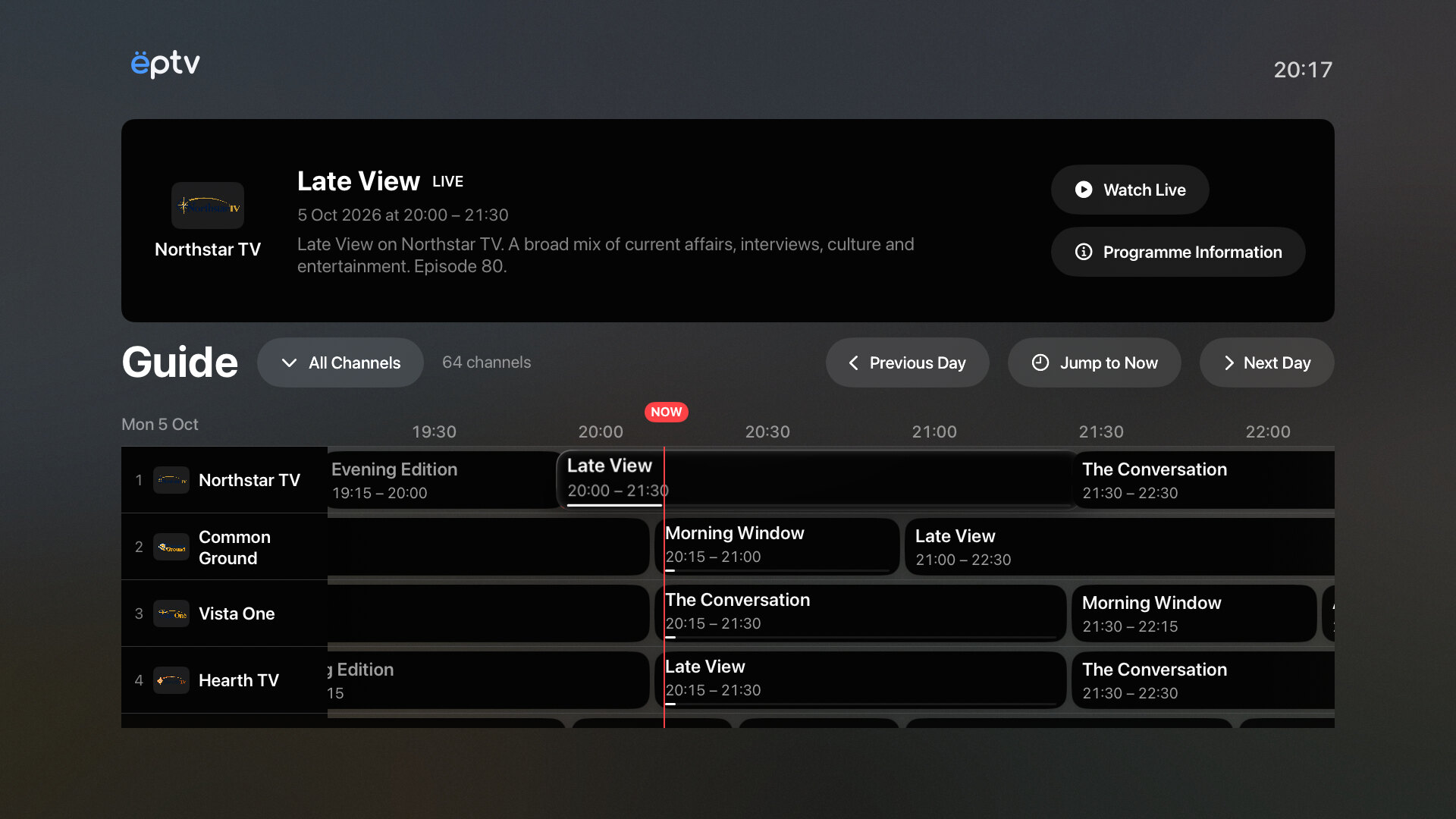
Open the Guide from Live TV and compare what is on your channels. If you already have something in mind, search for a channel or programme.
See upcoming programmes in the schedule. You can watch earlier ones only when your provider supports Replay for them.
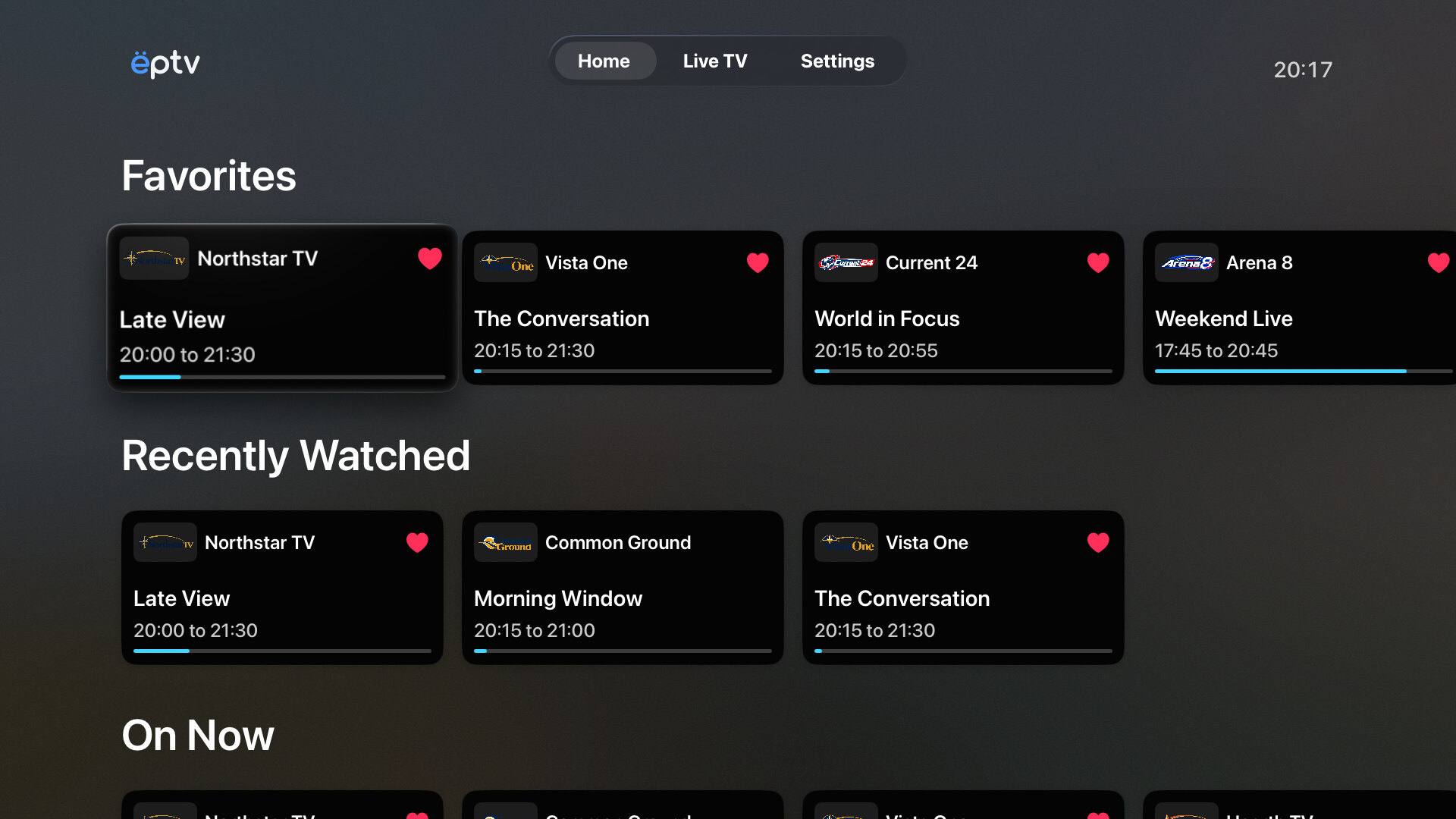
Open Home when you want to return to a favorite channel or find something that is about to start.
On Now and Starting Soon need guide data for your channels.
Some providers keep a programme archive. EPTV uses it to offer Start Over and Replay for supported channels and programmes.
Choose Watch from Start in the player to restart the current programme, when your provider supports it.
Select an earlier programme in the Guide. Your provider decides which programmes can be replayed and how long they stay available.
If Start Over or Replay is missing or disabled, your source may not support it.
On Apple TV, open the player’s channel browser and choose with the Siri Remote. The current channel keeps playing until you select another one. On Mac, switch with the keyboard or return to the previous channel.
Check the channel, its current programme, and what comes next. The controls get out of the way while you watch.
Add an M3U playlist URL on Mac or Apple TV. On Mac, you can also import a local playlist file. Use a compatible EPTV snapshot to restore a saved library.
Choose, rename, or delete a playlist. Refresh a URL playlist when your provider changes the channels. On Mac, you can import an XMLTV guide and match its programmes to your channels.
Learn how EPTV worksStart Over and Replay need a programme archive your provider supports. Rewinding needs a stream that supports seeking. Some unavailable controls stay visible but disabled.
The options can differ from one channel or programme to another.
Choose the stream quality, audio track, or subtitles you want on Mac and Apple TV. The options depend on what the stream includes.
Browse with the keyboard, manage playlists, and watch in a window, fullscreen, or the Floating Player.
Explore EPTV for MacBrowse with the Siri Remote, watch fullscreen, and change channels from the player.
Explore EPTV for Apple TVMac and Apple TV are not publicly released yet. These are features in development builds. We will confirm the final release details before publication.
See how EPTV works with your playlist on Mac and Apple TV.
Channels and IPTV subscriptions are not included.